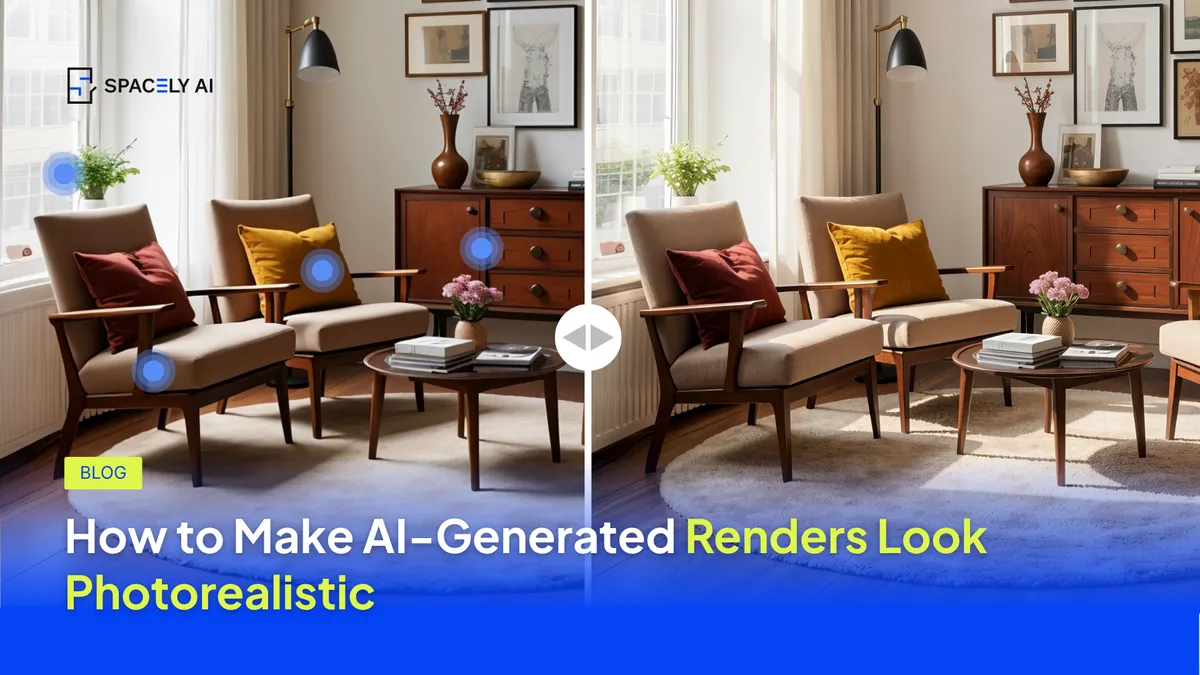
Photorealistic AI renders come from three things: a clear base, specific prompts, and the right settings. Here's how to get them in Spacely AI.
Start from a real photo or a clean model view with accurate geometry gives the AI the best foundation to work from. Write a prompt that names materials, lighting, and camera perspective specifically: brushed brass, oak, matte concrete rather than "nice finishes." Name the light direction and time of day. Add a camera cue like "eye-level, wide-angle interior photography."
From there, choose the right tool and resolution. Realistic Render for true-to-life results, Enhance Quality 4K to sharpen the final image. If anything reads as off, use Point & Edit to refine specific elements rather than regenerating the whole scene.
This works whether you start from a room photo, a sketch, or a SketchUp view. Below: what makes a render read as real, how to write prompts for it, which settings to use, and how to refine the result.
What makes an AI render look photorealistic?
Four factors decide it. When a render looks fake, one of these is usually the cause:
- Lighting. Real light has a direction, a temperature, and shadows that fall soft at the edges. "Good lighting" tells the engine nothing. "Soft morning light from the left" tells it everything.
- Materials. Named materials read as real — brushed brass, honed marble, oak veneer. "Modern finishes" renders flat, because it isn't something the eye can actually picture.
- Perspective. The camera has to sit where a person would stand. Eye-level, wide-angle interior shots read like real photography; a floating, tilted angle reads like a game engine.
- Resolution. Sharpness sells realism. A soft, low-res image looks synthetic no matter how good the composition underneath it is.
How do you write prompts for photorealistic renders?
| Element |
Vague (looks fake) |
Specific (looks real) |
| Lighting |
"bright room" |
"soft afternoon light through sheer curtains" |
| Materials |
"nice finishes" |
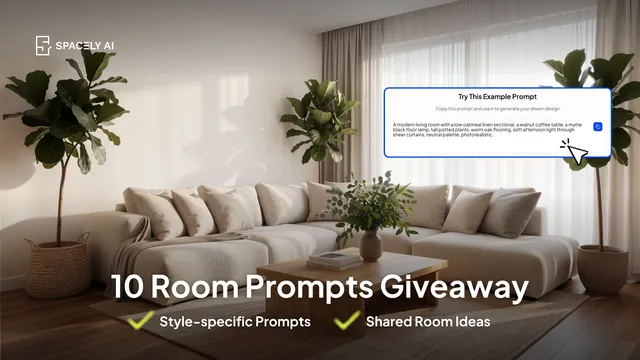
"matte oak floor, brushed brass fixtures, linen sofa" |
| Camera |
— |
"eye-level, wide-angle interior photography" |
| Quality |
"high quality" |
"photorealistic, sharp, professional" |
A prompt that names all four renders far closer to a real photograph than a style word alone. Keep it to a sentence or two enough detail to guide, not so much that ideas compete.
The tool and the input matter as much as the words:
- Realistic Render is the base tool for true-to-life results. Use it when the goal is a believable photograph rather than a stylized concept (that's Creative Render's job).
- Start from a clear input. A sharp room photo or a clean SketchUp/model view gives the AI accurate geometry to render, which is the single biggest lift to realism.
- Enhance Quality 4K upscales the final image so materials and edges stay sharp — flat, soft renders often just need this step.
- Point & Edit fixes local problems (a wrong material, an odd reflection) without regenerating the whole scene, so you keep the parts that already look real.
How do you fix a render that still looks fake?
Work through these in order — the fix is usually near the top:
- Check the lighting. Add a direction and time of day. Most flat renders are a lighting problem.
- Name the materials. Replace generic finishes with specific ones.
- Set the camera. Add "eye-level, wide-angle interior photography."
- Upscale. Run Enhance Quality 4K for a sharper final image.
- Spot-fix, don't restart. Use Point & Edit on the one element that's wrong.
Photorealistic AI renders come from a clear base, a prompt that names light, materials, and camera, and the right settings (Realistic Render plus Enhance Quality 4K). When a render looks fake, it's almost always flat lighting, vague materials, or low resolution. Fix those three and refine the rest with Point & Edit, and you'll get an image you can present.
FAQ
Why do my AI renders look fake?
Usually one of three things: flat lighting, vague materials, or low resolution. Name the light direction and time of day, specify real materials, and upscale with Spacely AI's Enhance Quality 4K. In most cases, fixing the lighting alone makes the biggest difference.
What resolution should AI renders be?
For client-ready presentation, aim for a sharp, high-resolution image. Spacely AI's Enhance Quality 4K upscales renders to a crisp 4K, which keeps materials and edges clean — low-resolution renders read as artificial no matter how good the composition.
How do I make an AI render more realistic without redoing it?
Use Spacely AI's Point & Edit to fix the specific element that looks off — a material, a light, a reflection — while keeping the rest of the render. Then run Enhance Quality 4K to sharpen the final image. That's faster than regenerating and keeps the parts that already look real.
More design insights on the Spacely AI blog →
Get started
→ Create your free account
→ Watch the full tutorial on YouTube
→ Explore the member plan
For more information and media inquiries, please contact
Website: spacely.ai
Facebook: facebook.com/spacelyai
Instagram: instagram.com/spacely.ai
Email: [email protected]